Simpro to HubSpot: Skip Send to Simpro
Overview
The Simpro–HubSpot integration supports two-way data synchronisation, helping you keep customer information and sales records aligned across both platforms.
Previously, data synced automatically from Simpro to HubSpot. However, when syncing data from HubSpot to Simpro, users had to trigger Send to Simpro manually for each supported record.
With the latest update, you can enable the Skip Send To Simpro setting to automate this process. Once enabled, the integration automatically handles the Send to Simpro update, reducing manual steps and making the syncing process more convenient.
This article explains how to enable automatic syncing, how records are mapped between Simpro and HubSpot, and how to configure HubSpot contacts to support successful customer and deal synchronisation.
1. Enable automatic syncing from HubSpot to Simpro
You can configure the integration to handle Send to Simpro updates automatically, without manually triggering the action for each record.
Steps to enable automatic syncing
Log in to your Simpro–HubSpot integration.
Navigate to the Settings tab.
Locate the Skip Send To Simpro toggle.
Turn on the toggle to enable automatic handling of the Send to Simpro update.
Save the settings if prompted.
Once enabled, HubSpot deals and companies sync automatically to Simpro without requiring users to trigger Send to Simpro manually.
For HubSpot contacts, the Simpro Individual Customer field must be configured to determine how each contact syncs to Simpro.
2. Configure the “Simpro Individual Customer” field in HubSpot
When creating or managing a contact in HubSpot, you will find a dropdown field called Simpro Individual Customer.
This field determines whether the HubSpot contact should sync to Simpro as an Individual Customer or Contact.
Choose the appropriate value based on how you want the record to be handled.
| Simpro Individual Customer value | Expected behaviour |
|---|---|
| Yes | The HubSpot contact syncs to Simpro as an Individual Customer. |
| No | The contact syncs from HubSpot to Simpro as a Contact. |
| Blank (null) | The contact does not sync automatically to Simpro and remains in HubSpot until either Yes or No is selected. |
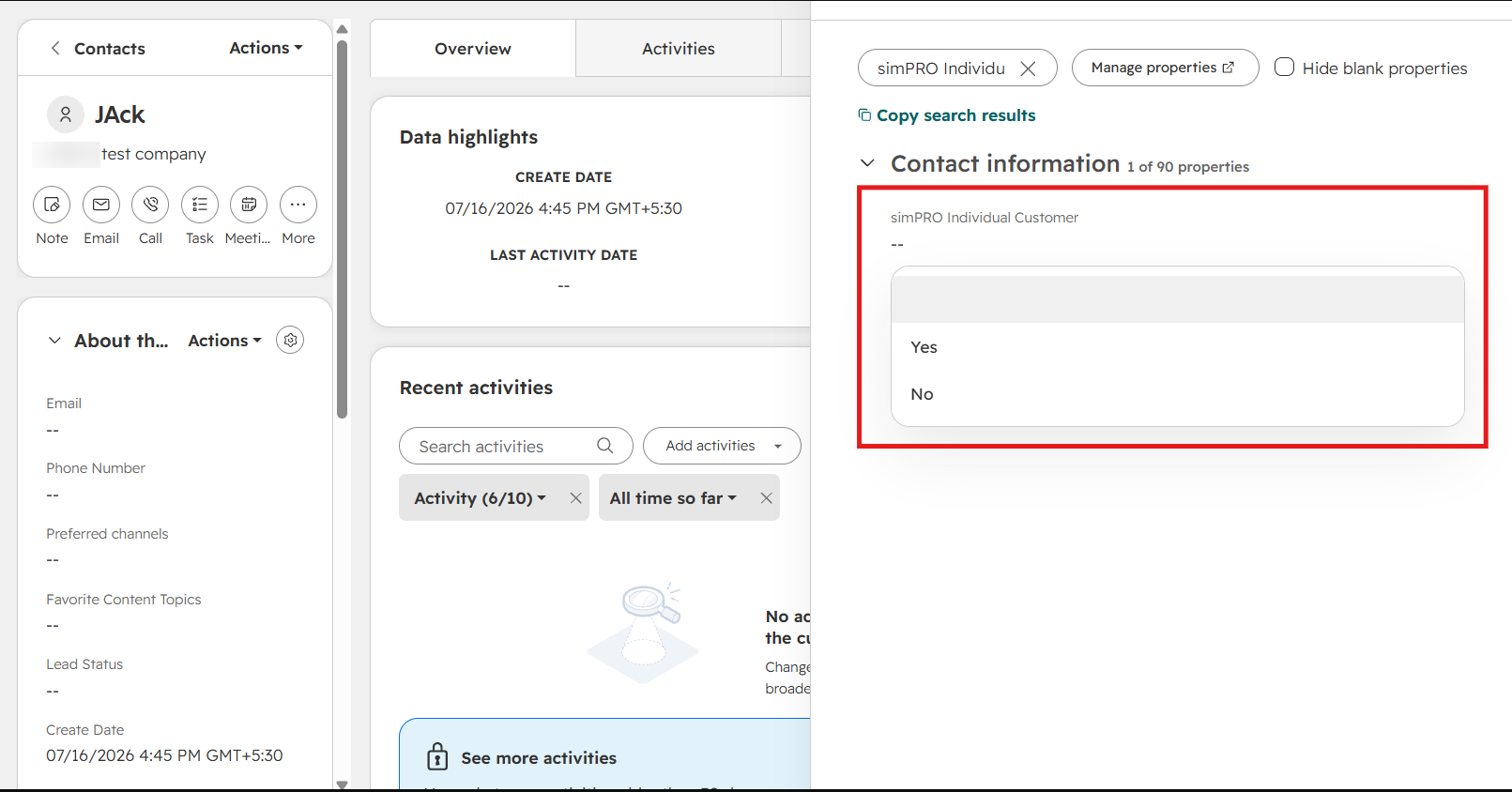
What has changed?
Previously, leaving this field blank meant the HubSpot contact would automatically sync to Simpro as a Contact. With the updated integration, you must select Yes or No to determine how the contact should be created.
3. Why is this field important for syncing deals as quotes?
The updated contact-sync behaviour is designed to support the relationship between HubSpot deals and Simpro quotes.
In Simpro, a quote must be associated with an Individual Customer or a Company Customer. A quote cannot be associated with a Simpro Contact alone.
For a HubSpot deal to sync successfully to Simpro as a quote, the associated Individual Customer or Company Customer must already exist in Simpro or be synced successfully before the quote is created.
What's in it for you?
Less manual work: Automatically sync HubSpot contacts, deals and companies to Simpro.
Better control: Choose whether HubSpot contacts sync as Individual Customers or Contacts.
Fewer syncing issues: Ensure customer records have the correct type to support successful quote synchronisation.