How to Re-Authenticate Autodesk Forma (formerly Autodesk Construction Cloud) in Your Integration with the Same or a Different User
How to reauthenticate Autodesk Forma account ?
Before re-authenticating, please ensure that the user has the required access to all currently syncing projects so that the sync does not break. Please refer to this article on required project permissions
To reauthenticate please log in to integrations.syncezy.com and then navigate to My Integrations > Click on Details for the app.
Once you are on the integration screen please refer to the steps below. Please ensure that you are not already logged in to any SharePoint account while performing the below steps. It is recommended to perform the below steps in either Incognito mode of the browser or after clearing the cache and cookies of the browser.
1. On the Integration page kindly click on the “Up arrow” button
2. Click on the green “Reconnect” button under Autodesk Forma logo to re-authorize the account.
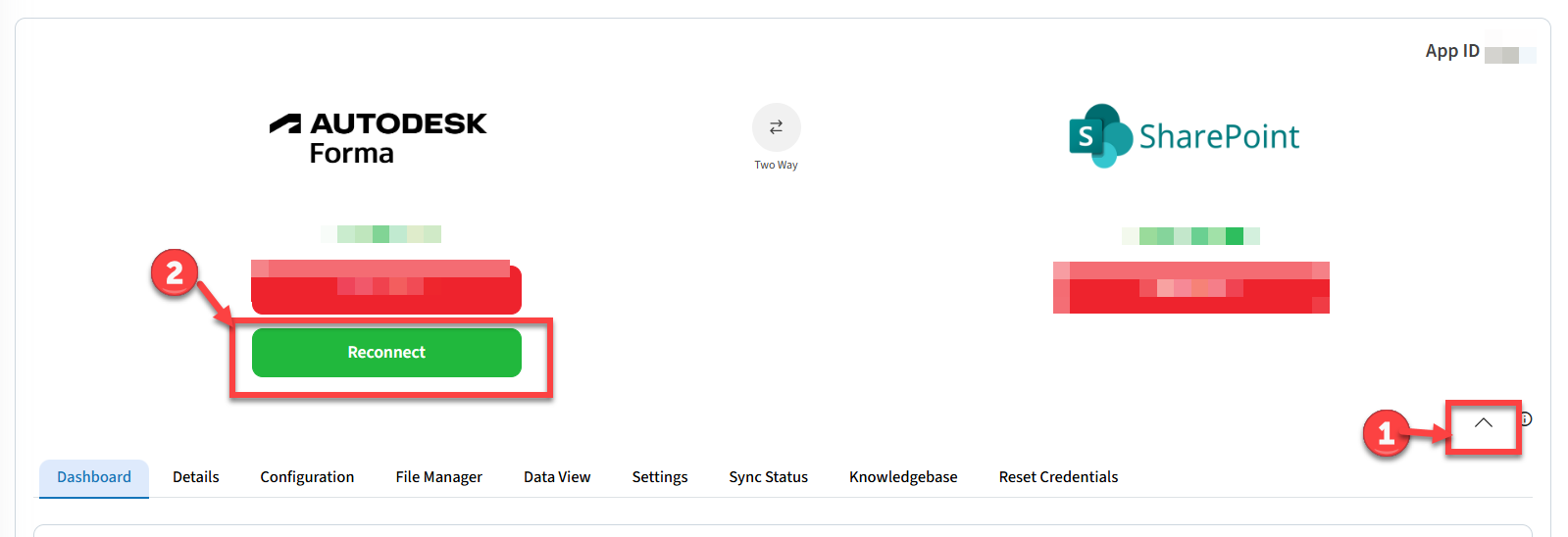
3. You will be redirected to a connection page. Click on Connect again to reauthorize account.
4. This will lead you to a Autodesk login page where you will need to enter the credentials of the account you would like to connect.
Tip: If you are already logged in with an Autodesk Construction Cloud account but need to authorize the integration using a different account, please try one of the following:
- Open SyncEzy in an incognito/private browser window and repeat the authorization steps, or
- Log out of your current Autodesk Forma account in your browser, then proceed with the connection.
These steps ensure the correct Autodesk account is used during the authorization process.
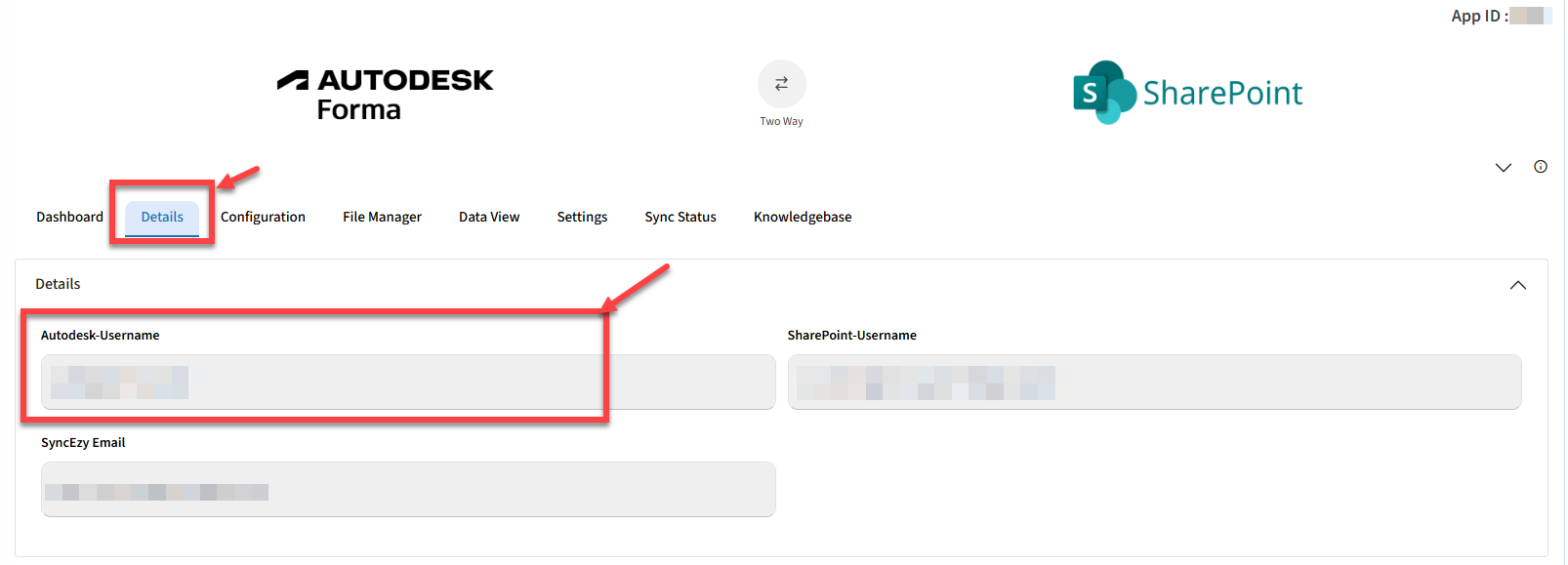
5. Once Reauthenticated you can see the updated connected account details in Autodesk-Username field under the Details tab.
Have a support question?
We offer three support channels:
Chat - Live Chat (24x5 support) from within your integration portal.
Phone - #1 for Support
AUS: +61 2 9136 9448
NZ: +64 9 303 2999
UK: +44 203 670 1109
US: +1 720 500 9302
Email - support@syncezy.com