Manual Payslip Sync Feature – Step-by-Step Guide
We have introduced a Manual Payslip Sync feature to allow users to sync payslips manually due to previous issues with webhook failures. This guide explains how to use this feature. Please only use this when the pay slips are not syncing automatically after they have been published.
Steps to Manually Sync Payslips :
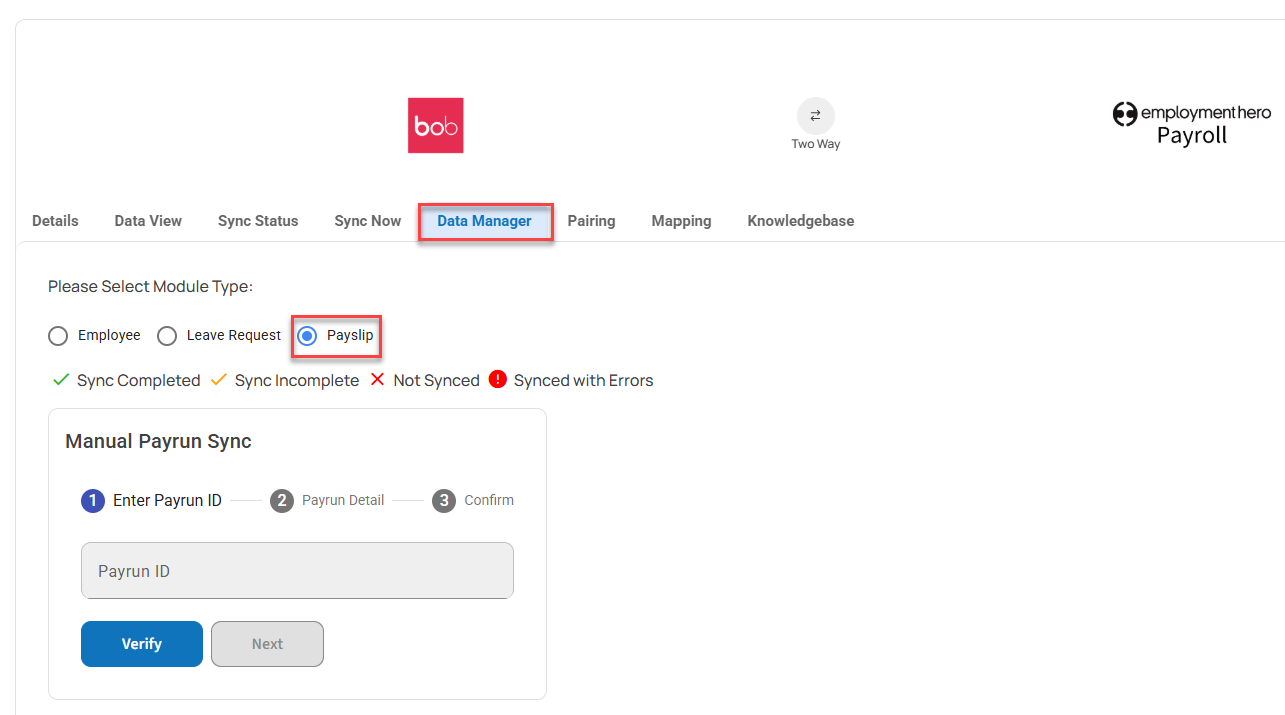
1. Navigate to the Data Manager Tab
- Go to SyncEzy > My Integrations > HiBob Employment Hero Two-Way Integration.
- Click on the "Data Manager" tab.
- Select the "Payslip" radio button.
(Refer to the screenshot below)
2. Enter Payrun ID & Verify
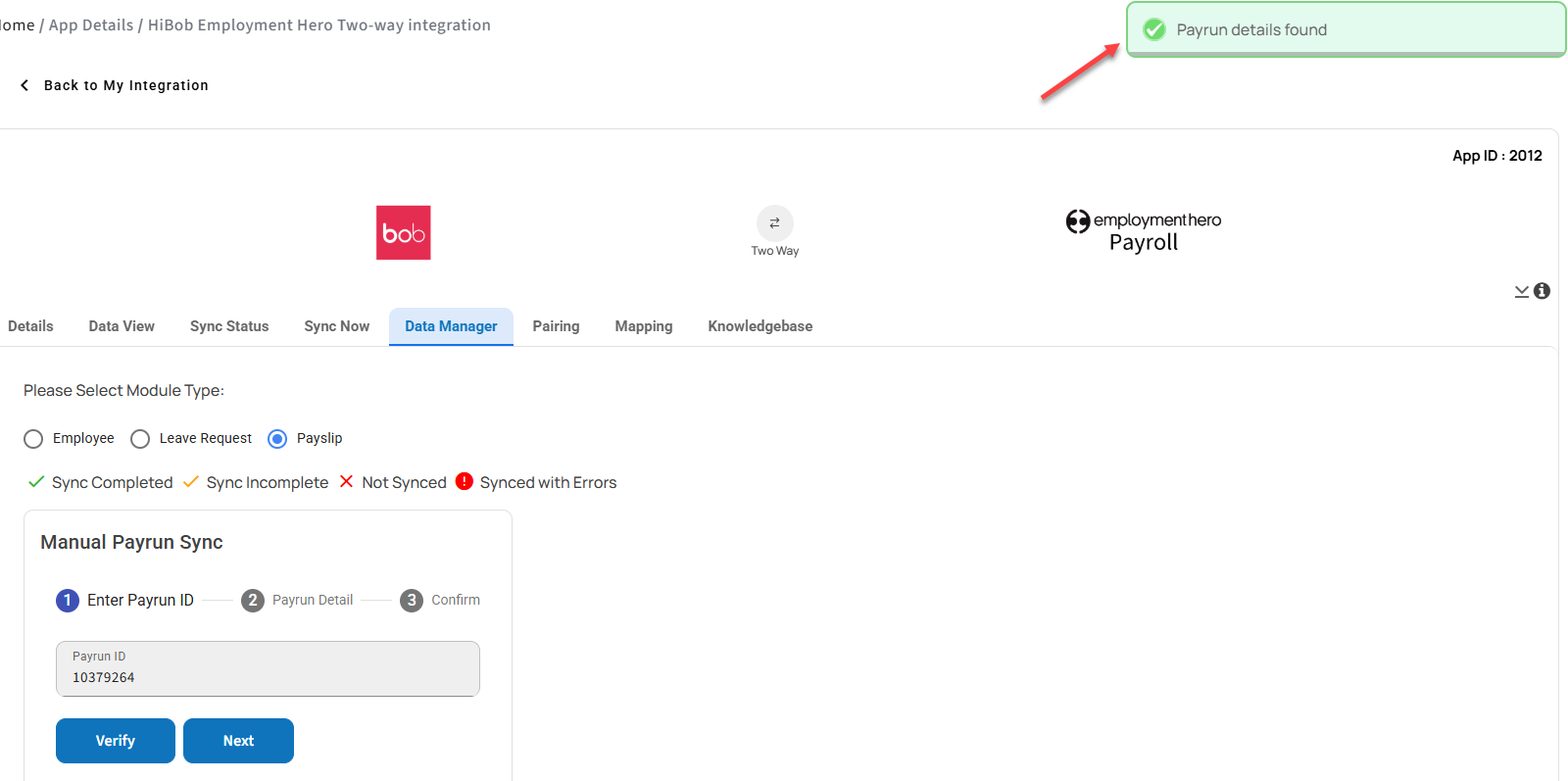
- In the "Manual Payrun Sync" section, enter the Payrun ID for which you want to sync payslips.
- Click the "Verify" button.
- The system will check if the Payrun ID exists and display a message confirming its validity.
(Refer to the screenshot below)
3. Check Payrun Status
Once verified, the system will show the status of the payrun:
- Is Payrun Finalized?
- Is Payslip Published?
If both are "Yes", proceed with the sync.
If one or both are "No", a warning message will appear:
"Do you still want to continue?"
- If the payslip is not finalized, it will sync as a draft payslip.
- If the payslip is not published but is published, it will be pushed to HiBob for all employees.
(Refer to the screenshot below)

4. Confirm and Sync the Payrun
- After reviewing the status, click "Sync Payrun" to proceed.
- In the next few minutes, the payrun and payslip PDFs will sync to HiBob.
(Refer to the screenshot below)


Related Articles
Understanding the Payslip File Naming Format in HiBob–Employment Hero Integration
Overview We have introduced an enhancement to the payslip file naming format used in the HiBob–Employment Hero integration. This update improves: Security and reliability of payslip syncing File uniqueness to prevent naming conflicts Easier ...
simPRO - Salesforce Integration - SyncEzy Portal User Guide - Force Manual Sync
IntegrationPortal User Guide simPRO - Salesforce Integration - Force Manual Sync The final sync function in the Integration portal for simPRO - Salesforce is the Force Manual Sync button. This Manual Sync section enables you to choose a particular ...
New Feature Announcement: Sync Commitments, Forms, Observations, Inspections & Incidents from Procore to SharePoint
? New Feature Announcement: Sync Commitments, Forms, Observations, Inspections & Incidents from Procore to SharePoint We’re excited to announce that SyncEzy now supports automatic synchronization of Procore’s Commitments, Forms, Observations, ...
New Feature: Multiple Procore Account Authentication
This feature is specifically designed for enterprise environments handling exceptionally large datasets—typically exceeding 2TB+ of data sync size or 100,000+ data items—that frequently encounter Procore API rate limits during heavy synchronization ...
How to Use the Sync Delete Feature in the Procore Sharepoint Integration
Sync Delete option is pivotal for maintaining data consistency and preventing accidental loss of important documents. Here's a comprehensive guide on how to use this feature effectively: Enabling Sync Deletes The Sync Delete feature facilitates the ...