Understanding SharePoint Authentication Issues on SyncEzy
This article explains why these errors occur, the different scenarios you might encounter, and the exact steps an administrator needs to follow to resolve them. The goal is to help both end users and admins clearly understand what is required to restore access.
Why This Happens
SyncEzy requires permission to authenticate with your SharePoint (Microsoft Entra ID / Azure AD) account. Many organizations restrict third‑party app access for security reasons. When these restrictions are enabled, authentication can fail until an administrator explicitly allows or approves the request.
Common Authentication Scenarios and How to Fix Them
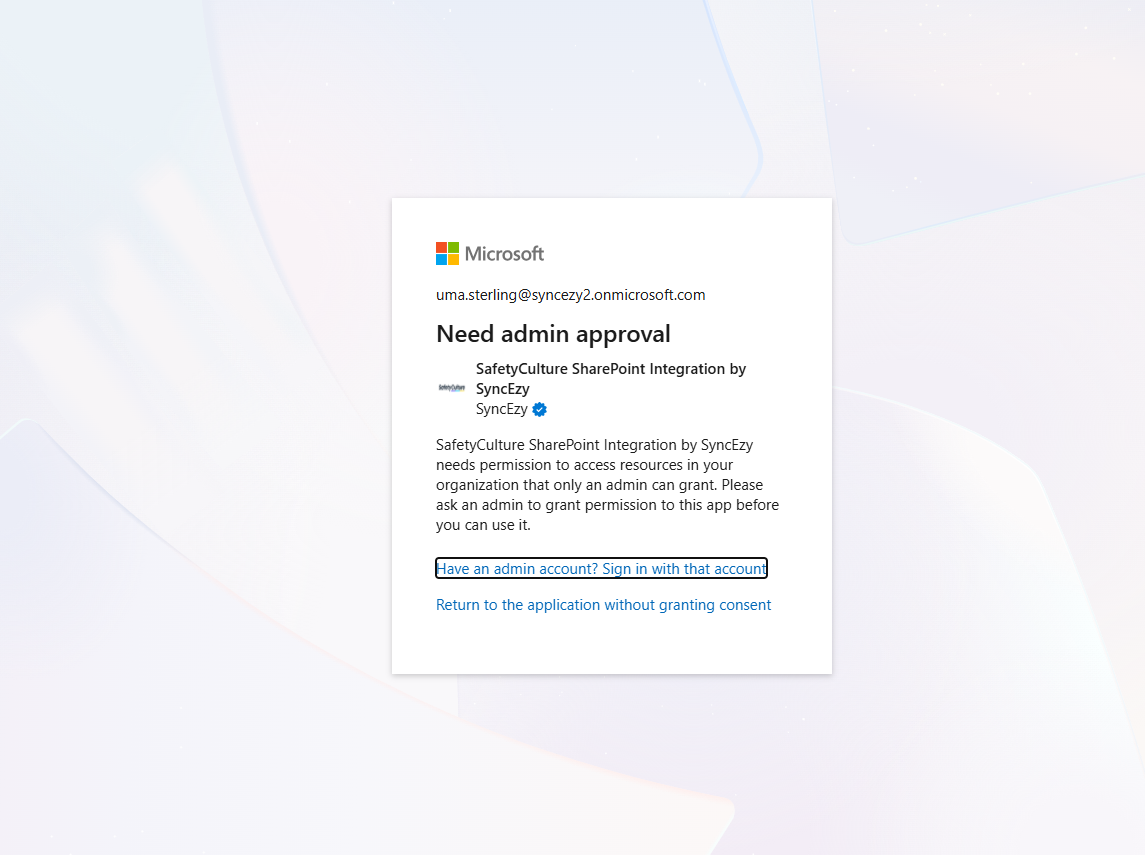
Case 1: Admin Approval Needed (User Consent Restricted)
What this means
Your organization has restricted third‑party authentication, and users are not allowed to grant consent to applications on their own. As a result, authentication fails immediately and requires an admin to temporarily allow consent.
What the admin needs to do
The administrator can temporarily allow user consent, let the user authenticate, and then revert the setting if required.
Admin Steps:
Navigate to https://entra.microsoft.com/
Click Enterprise applications from the left sidebar
Select Consent and permissions
Choose one of the following options:
Allow user consent for apps from verified publishers, for selected permissions, OR
Let Microsoft manage your consent settings (Recommended) (If this setting is chosen, you may get the case 2 situation)
Save the changes
Ask the user to try authenticating their SharePoint account on SyncEzy again
Once authentication is completed successfully, the admin may revert the consent settings if organizational policies require it.
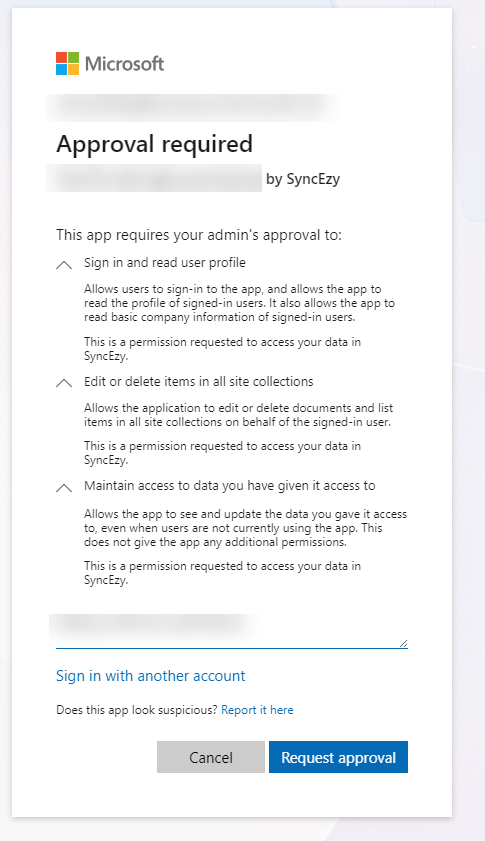
Case 2: Approval Required (Admin Consent Request Enabled)
What this means
Third‑party authentication is enabled, but admin approval is required before access can be granted. In this case, the user can submit a consent request directly from the authentication window.
When the request is submitted, a notification is sent to the system administrator for approval.
Admin Steps to Approve the Request:
Navigate to https://entra.microsoft.com/
Click Enterprise applications from the left sidebar
Select Admin consent requests
Click on the received request
Review and Approve the request
Inform the user to re‑authenticate their SharePoint account on SyncEzy
Once approved, the authentication should complete successfully.
Case 3: Previously Authenticated but Sync Has Stopped and Re‑authentication Fails
What this means
In some cases, access was granted earlier, but later changes in admin settings or app properties have disabled sign‑in access. This can prevent syncing and block re‑authentication attempts.
Admin Steps to Restore Access:
Navigate to https://entra.microsoft.com/
Click Enterprise applications from the left sidebar
Select the SyncEzy application from All applications
Click Properties (or View properties)
Ensure Sign‑in access is turned ON
Save the changes
After this, the user should be able to re‑authenticate and resume syncing successfully.